 cue
cuemacOS teleprompter
Write it once.
Read it straight to camera.
Scripts live in a notes-style window. Open any one as a floating overlay that stays above every other app, follows your voice as you speak, and keeps you on the clock.
First launch: cue isn’t notarized yet, so macOS will block it. Right-click cue in Applications and choose Open, then confirm. Once only.
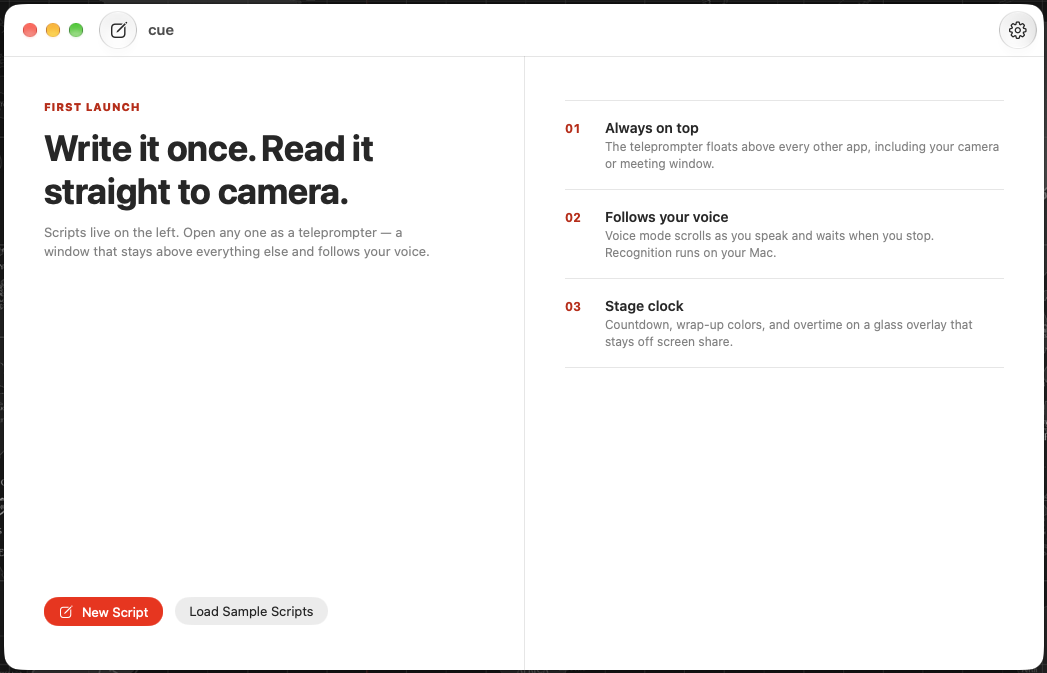
Always on top
The overlay floats above every other app, including your camera or meeting window, and can be dialled down to a see-through pane.
Follows your voice
Voice mode scrolls as you speak and waits when you stop. Recognition runs on your Mac — the audio never leaves it.
Stage clock
Countdown, wrap-up colours and overtime, so you know how long you have without glancing away from the lens.
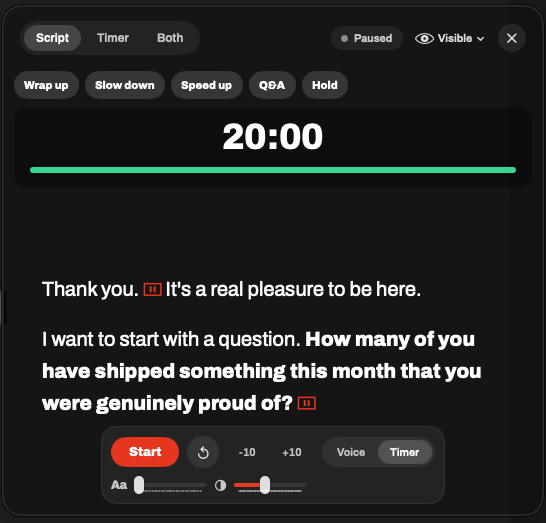
An overlay built to stay out of the way
A glass island you can park beside the lens. It can hide itself from screenshots and many screen shares, so the people on the call see you — not your script.
- Voice or timer scrolling, switchable mid-take
- Wrap-up cues: slow down, speed up, Q&A, hold
- Space to start, Esc to close, ⌘⇧P from anywhere
Plain text, lightly marked up
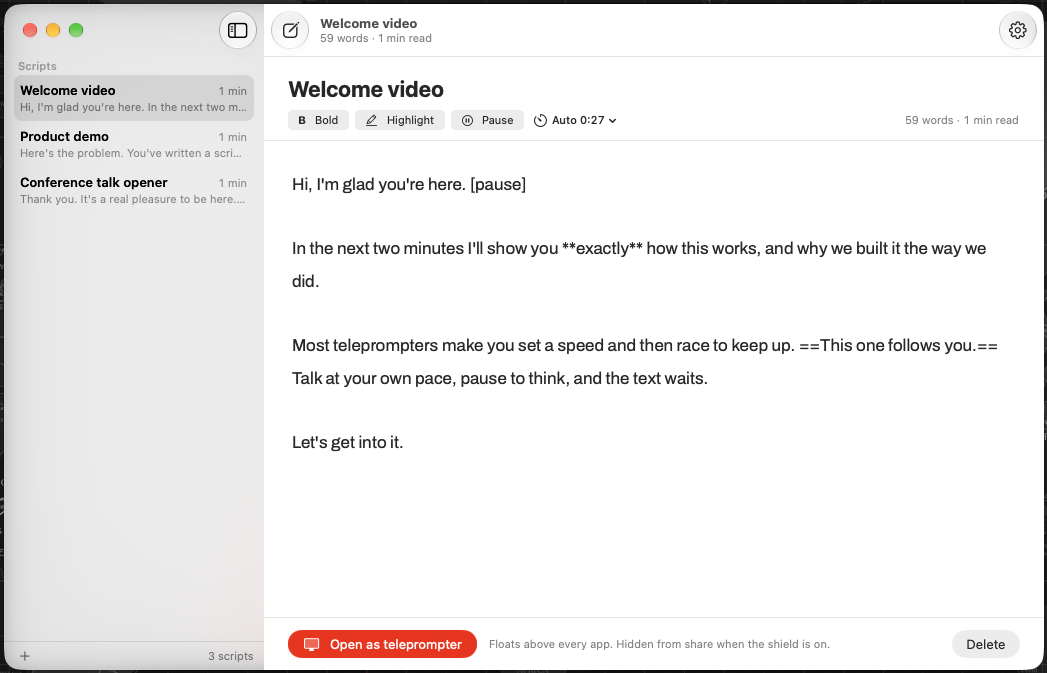
Scripts are plain text. Wrap a phrase in **bold** to stress it,
==highlight== to make it jump out on the overlay, and drop
[pause] where you want the prompter to wait for you.
Everything is stored on your Mac as JSON. No account, no sync, nothing to sign in to.